-1.png?w=520&h=124)
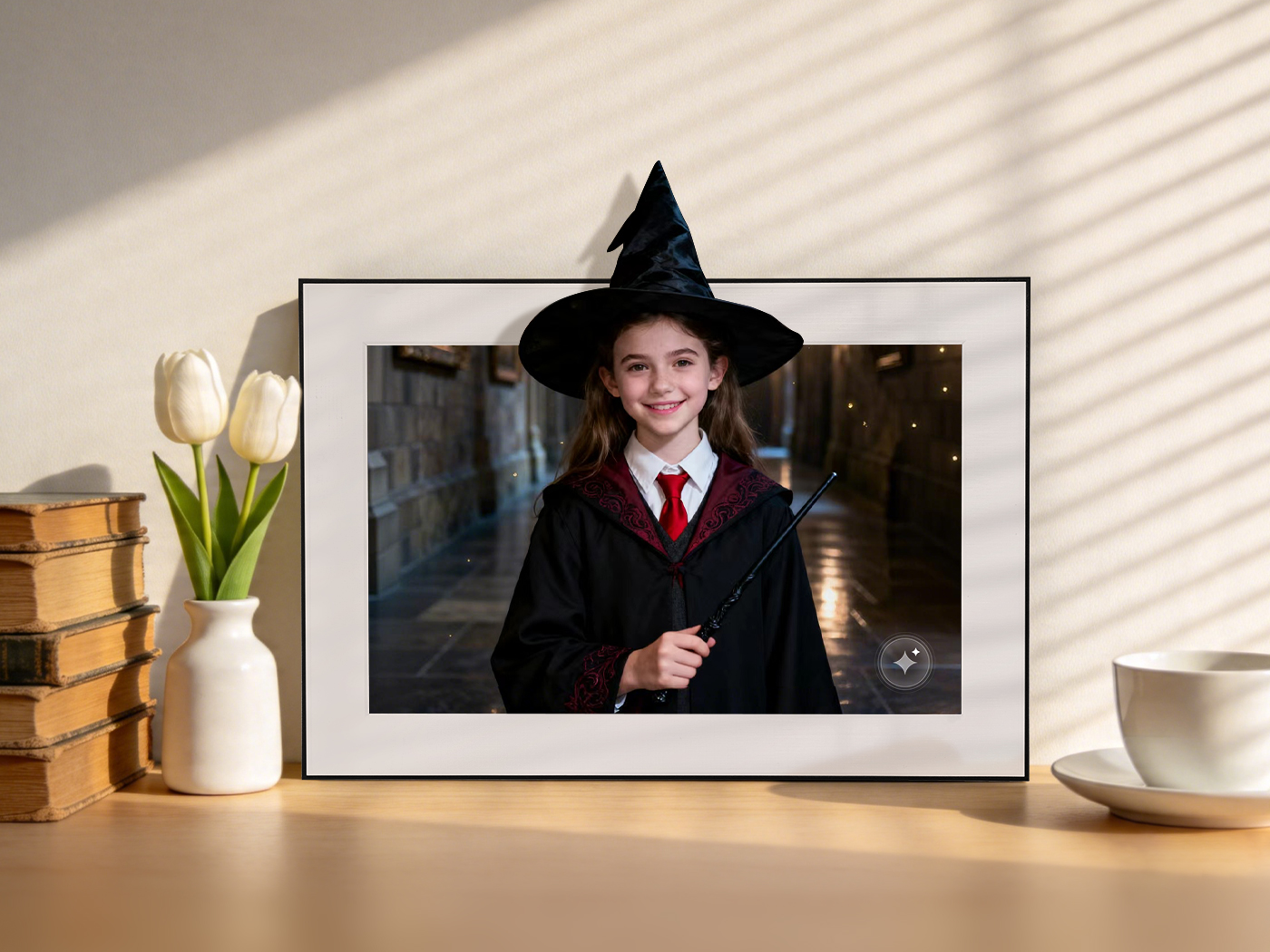
Every AI creation you make on Homture is saved in your personal library. You can go back to view, re-send, download, or delete any of them at any time — all from one place in the app.
How to Find Your AI Creations
- Open the Homture app
- Tap the Account tab
- Tap "My Creation"
This opens your full AI creation library, showing all past creations in one scrollable list.
Viewing a Creation
Tap any creation in the library to open it. From the detail view you can:
- Watch the AI animation
- Re-send it to your frame
- Download it to your phone
- Delete it from your library
Deleting a Creation
To remove a creation from your library:
- Open the creation from My Creation
- Tap the delete option
- Confirm when prompted: "Remove this animation?"
Optional Feedback When Deleting
After confirming deletion, the app may ask: "Would you like to tell us why? (optional)" You can choose from:
- Looks artificial / fake
- Motion is weird / broken
- Poor quality or blurry
- Not what I expected
- Feels unrealistic
- Looks distorted
- Just don't like it
- Just want to try again
- Others
This feedback is optional but helps Homture improve the AI. You can skip it if you prefer.
Re-sending to Your Frame
Want to put an older creation back on your frame? From the creation detail page, tap "Select frames & send" and choose your frame. The AI video will be pushed to the frame's AI Moments tab.
Downloading to Your Phone
You can download any creation directly to your phone's camera roll from the My Creation library. Tap the download option on the creation detail page and you'll see "Downloaded successfully. Please check your Photos."